Showing posts with label IDE. Show all posts

Saturday, June 5, 2010

Eclipse Verilog / VHDL Editor Plug-in

veditor is a Verilog and VHDL editor for Eclipse SDE. It is an open source plug-in with very nice set of features.

First, some words about other VHDL and Verilog editors. They can be found integrated into FPGA IDE as QuartusII from Altera, for instance, or ISE from Xilinx and no doubts - they are very good. Each has a free version of IDE (Web Edition or WebPack). This is how QuartusII IDE looks like:

I like Notepad++ very much for editing a single HDL file. Notepad++ is convenient and powerful as a general editor. In addition to that it understands many different languages including VHDL and Verilog: colorizes keywords and marks logical blocks of the languages:

An obvious disadvantage is that it does not show relationship between other files in a project.

Here veditor can become helpful. It can treat a bunch of files as a project

with all interconnections between files. That significantly simplifies editing.

In Outline window it shows all elements of an open file as interface, signals and components. It really helps with finding and jumping right to the element you want to edit.

Also veditor detects and shows up syntax errors and warnings, for example, about declared but not used signals and components:

To install veditor, download the latest version of the plug-in (I've got net.sourceforge.veditor_0.7.1.jar), then copy the file into "eclipse\plugins\" directory. Verilog/VHDL editor will be available for using after restarting Eclipse.
Read more...

Sunday, May 30, 2010

Eclipse IDE - Add Python

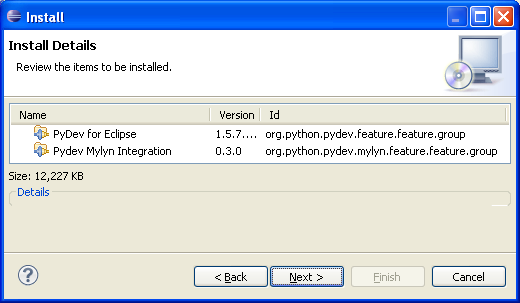
PyDev is a very good and popular Python IDE plug-in for Eclipse SDE. Adding it to Eclipse is straight forward: just follow "Quick Install" in the download page or detailed instructions from Installation section of PyDev manual.

I chose the installation via Update Manager:


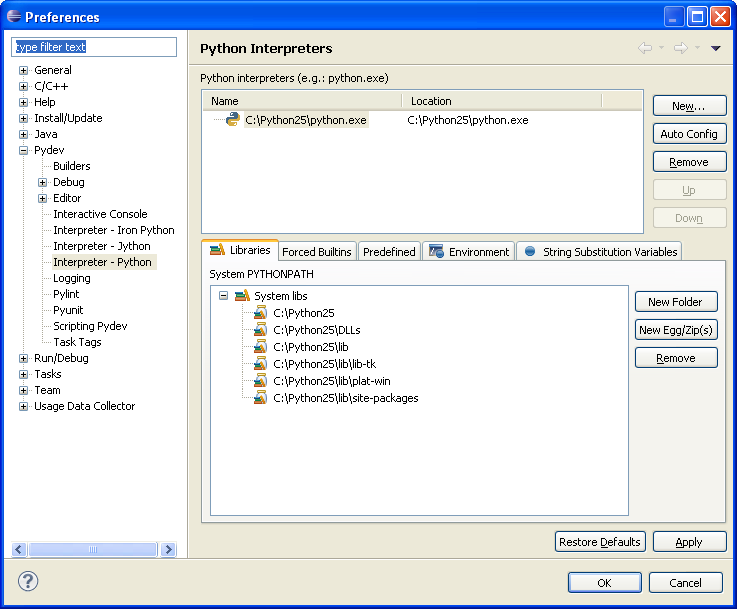
Start Eclipse and set up Python Interpreters in menu Windows/Preferences:


by clicking "Auto Config" or "New..." button.

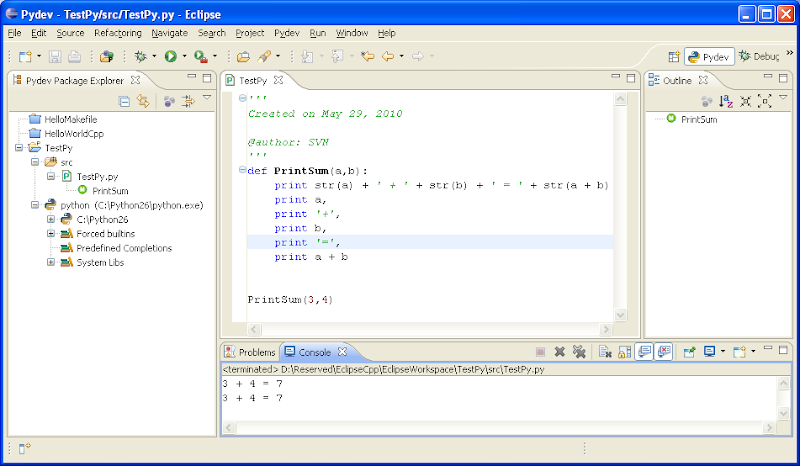
For testing create a new Pydev project from menu File/New/Project:


Write any simple code and run:


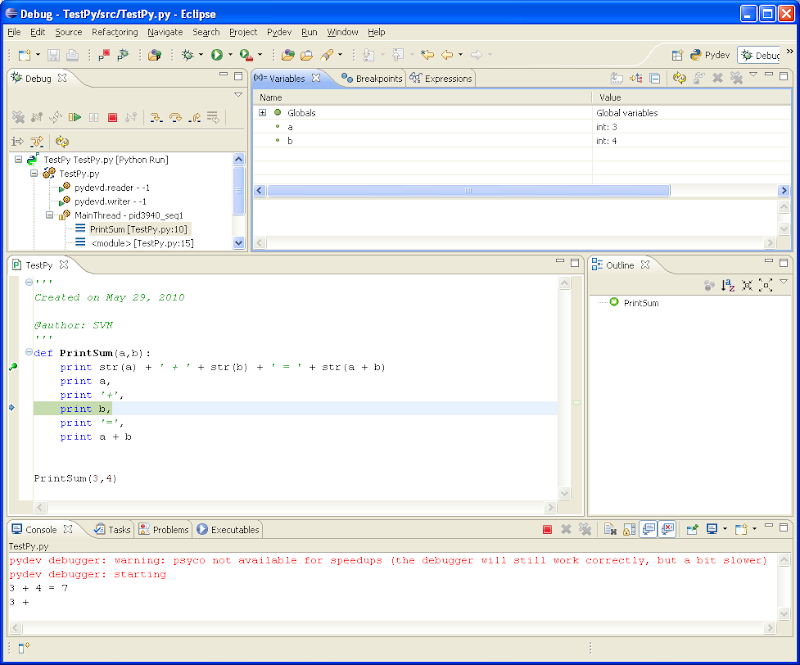
Python extension module Psyco can be installed in order to speed up debugging. It's a pity I could not make it work with Python 2.6 - it shows the warning that "psyco is not available...":


It works fine with Python 2.5:


Read more...

Sunday, May 23, 2010

Eclipse IDE - Starting Up

Eclipse SDE (Software Development Environment) is a great foundation for different languages IDEs (Integrated Development Environment). Eclipse functionality can be extended with plug-ins and there are plenty of them available for different purposes. Many of plug-ings are free of charge, some other are under commercial licensing. My personal interests lie in the field of programming with C/C++ and Python and corresponding plug-ins come for free.

Since Eclipse is written in Java, Java Runtime Environment (JRE) should be installed on the computer: get it from www.java.com. Installation of Eclipse is straight forward. It's easier to download the closest pre-configured package and unarchive it wherever you want. In my case it is "Eclipse IDE for C/C++ Developers". Eclipse Galileo Documentation (HTML Help Center) from Documentation page has all instructions for installation and tutorials to get started. For Windows I chose MinGW installation path:
  1. Download and run the MinGW setup program, MinGW-5.1.3.exe.

  2. Select download and install the MinGW base tools and the g++ compiler. You may select the Current or Candidate version of these tools. You may also install any of the other available compilers as well.

    Do not install the MinGW Make feature as the MSYS version of make from step 5 is a more complete implementation of make.


  3. The MinGW setup program currently does not install the gdb debugger. To install the debugger, download the file from the following location: gdb-6.6.tar.bz2

  4. Extract the contents of the file gdb-6.6.tar.bz2 to the same location where you installed MinGW.

  5. If you want to use Makefile projects, download and run the setup program from the following location: MSYS-1.0.10.exe. MSYS provides an implementation of Make and related command line tools. This is not required for other types of projects with the MinGW toolchain, which use CDT's internal build tools to perform the build.
It's simple to check how it runs by following "Creating a simple application" tutorial from Eclipse Galileo Documentation "C/C++ Development User Guide / Getting Started"
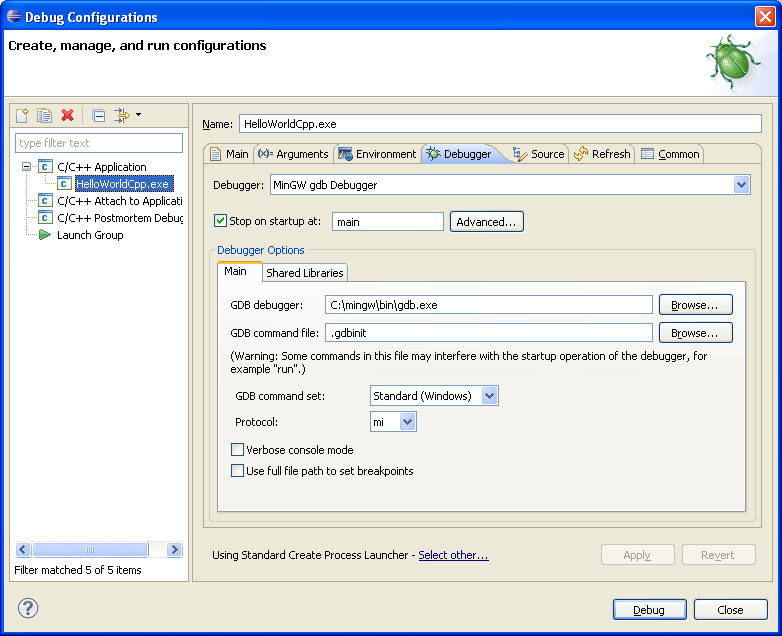
I had to put full path to dbg.exe debugger to make it working:


Follow the next "Creating a Makefile project" tutorial to check how Makefile approach works:


Here are some settings to get Makefile and Debug working:


Read more...