Showing posts with label Windows. Show all posts

Sunday, May 30, 2010

Eclipse IDE - Add Python

PyDev is a very good and popular Python IDE plug-in for Eclipse SDE. Adding it to Eclipse is straight forward: just follow "Quick Install" in the download page or detailed instructions from Installation section of PyDev manual.

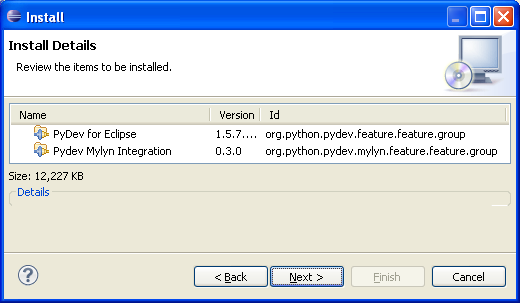
I chose the installation via Update Manager:


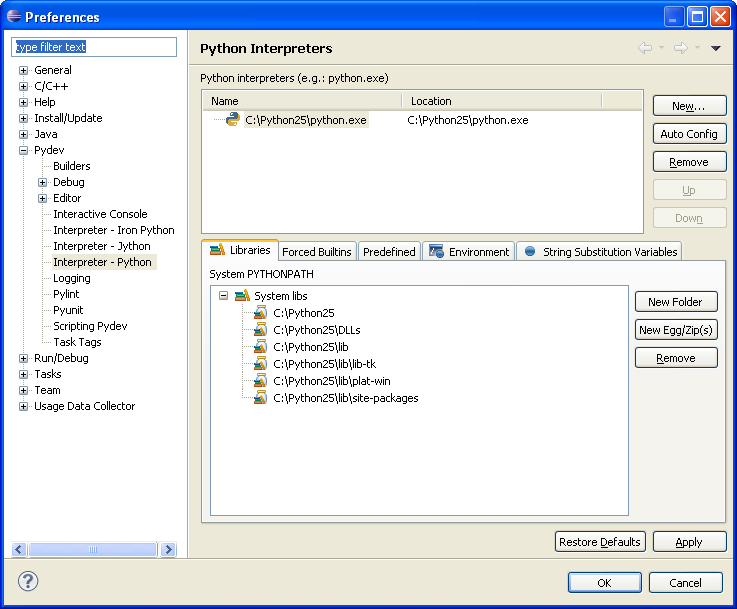
Start Eclipse and set up Python Interpreters in menu Windows/Preferences:


by clicking "Auto Config" or "New..." button.

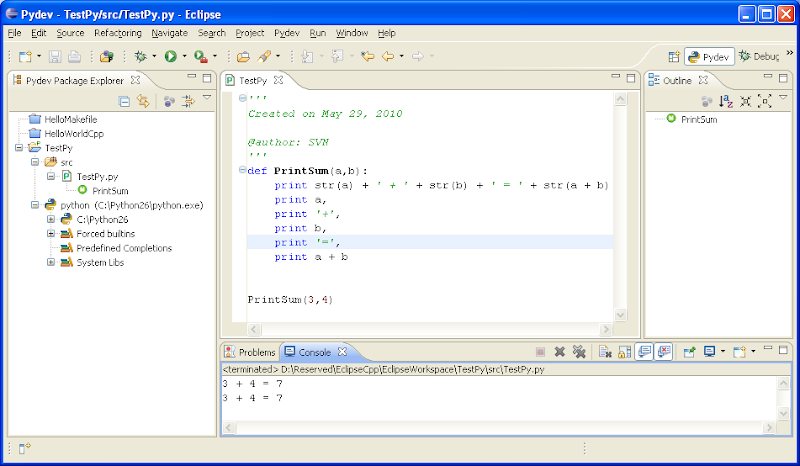
For testing create a new Pydev project from menu File/New/Project:


Write any simple code and run:


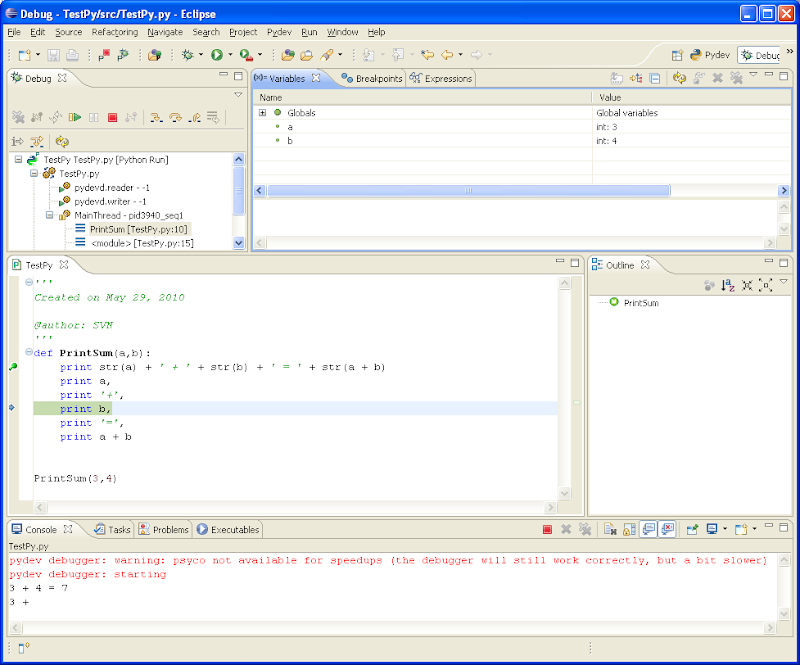
Python extension module Psyco can be installed in order to speed up debugging. It's a pity I could not make it work with Python 2.6 - it shows the warning that "psyco is not available...":


It works fine with Python 2.5:


Read more...

Sunday, May 23, 2010

Eclipse IDE - Starting Up

Eclipse SDE (Software Development Environment) is a great foundation for different languages IDEs (Integrated Development Environment). Eclipse functionality can be extended with plug-ins and there are plenty of them available for different purposes. Many of plug-ings are free of charge, some other are under commercial licensing. My personal interests lie in the field of programming with C/C++ and Python and corresponding plug-ins come for free.

Since Eclipse is written in Java, Java Runtime Environment (JRE) should be installed on the computer: get it from www.java.com. Installation of Eclipse is straight forward. It's easier to download the closest pre-configured package and unarchive it wherever you want. In my case it is "Eclipse IDE for C/C++ Developers". Eclipse Galileo Documentation (HTML Help Center) from Documentation page has all instructions for installation and tutorials to get started. For Windows I chose MinGW installation path:
  1. Download and run the MinGW setup program, MinGW-5.1.3.exe.

  2. Select download and install the MinGW base tools and the g++ compiler. You may select the Current or Candidate version of these tools. You may also install any of the other available compilers as well.

    Do not install the MinGW Make feature as the MSYS version of make from step 5 is a more complete implementation of make.


  3. The MinGW setup program currently does not install the gdb debugger. To install the debugger, download the file from the following location: gdb-6.6.tar.bz2

  4. Extract the contents of the file gdb-6.6.tar.bz2 to the same location where you installed MinGW.

  5. If you want to use Makefile projects, download and run the setup program from the following location: MSYS-1.0.10.exe. MSYS provides an implementation of Make and related command line tools. This is not required for other types of projects with the MinGW toolchain, which use CDT's internal build tools to perform the build.
It's simple to check how it runs by following "Creating a simple application" tutorial from Eclipse Galileo Documentation "C/C++ Development User Guide / Getting Started"
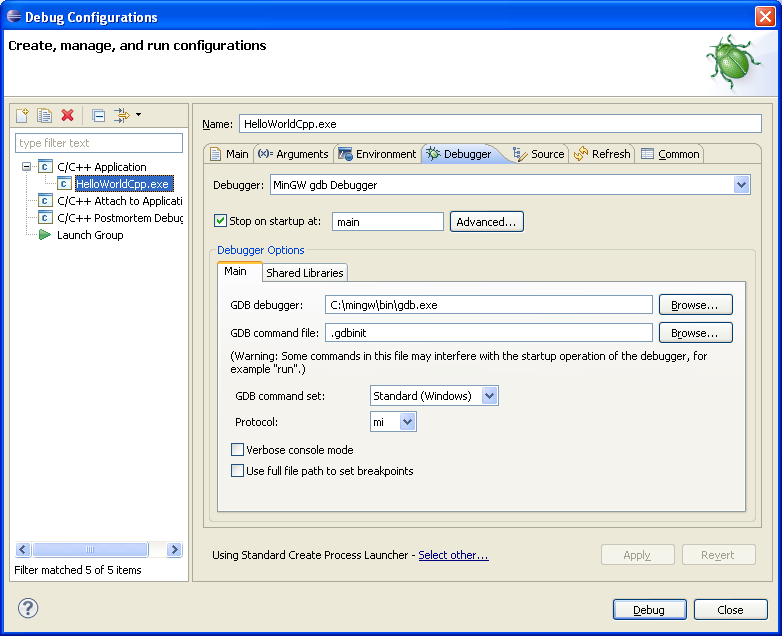
I had to put full path to dbg.exe debugger to make it working:


Follow the next "Creating a Makefile project" tutorial to check how Makefile approach works:


Here are some settings to get Makefile and Debug working:


Read more...

Sunday, May 9, 2010

Free Screen Recorders for Windows

If picture is worth a thousand words then video might be worth a million… In many cases, for instance, in order to explain how to use a program, it's easier and faster to make a video record than describe that step by step.

This is the short list of screen recorders I found useful.
  1. CamStudio from http://camstudio.org is a simple in use program, open source, comes with efficient lossless codec, can record sound from microphone or audio signal going to speakers. It can generate AVI and SWI files using different codecs. It is also possible to prepare and add annotations during recording but the way it works is not very convenient from my point of view. In any case this is five-star screen recorder program and, not surprising, it's very popular for making tutorials: check Youtube for CamStudio.

  2. "Free Screen Recorder" from http://www.nbxsoft.com is a twin brother of CamStudio, all windows and options are the same; only view of the main window has different icons. Just for the record NBXSoft offers a bunch of free tools related to video, audio, CD/DVD. I would keep "Free Flv to AVI Converter" and "Free Create-Burn ISO Image" in mind for the future.


  3. Wink from http://www.debugmode.com is a very good program for recording from computer screen. It saves records in Macromedia Flash SWF format. With default settings recorded audio from microphone sounds a little broken, intermittent, but it probably can be improved by adjusting some parameters. Wink 's strong advantages are a possibility to add annotations to frames after recording and relatively small size of SWF file.

  4. SCREEN2EXE from http://www.screen-record.com has very high compression ratio, easy to add annotations after recording and to eliminate unchanged frames automatically. Recorded audio is clean. The only limitation of the free of charge version is that it saves files only in self-playing EXE format; SWF and AVI are allowed in $49 SCREEN2SWF version only. I find EXE format sufficient for making video notes for myself.

From output file size point of view SCREEN2EXE is the outstanding winner - on a rough try it creates files 10 times smaller than Wink and about 100 times smaller than CamStudio with CamStudio Lossless Codec v1.4 and optimum settings proposed by other people. Some people suggest DivX codec for a better result, but I doubt it would create a 100 times smaller file.

Wink seems to be the best for making interactive presentations not just with annotations but also with buttons "Back", "Next" and "Go to". It also has a potential to improve output file size to get closer to SCREEN2EXE. It seems that the latter is using much lower frame rate but it collects all the frames where mouse click happened and compensates not smooth cursor movement by graphical enhancing it at click moments.

CamStudio is good for real time video when necessary to capture a process of drawing, for example. Simplicity of the program is a very strong advantage too. After all, size of files becomes less critical if you don't store them at your personal computer. Record files can be uploaded to Youtube where files are limited by 2 GB or 10 minutes: http://www.google.com/support/youtube/bin/answer.py?hl=en&answer=55743
Read more...

Saturday, March 20, 2010

Win XP Explorer Context Menu: Open and Run in CMD

From time to time I still have to use software running in DOS command.com-like window. If such a program was started from Explorer, the cmd window would disappear with all the information as soon as the program has ended. To avoid that it is necessary, first, to start command window by running cmd.exe, then change directory to the one you need to run the program from and finally start the program. Luckily, there are ways to speed it up.

A partial solution for the problem would be at least an ability to open command window in a required directory and there are many known ways to do that. For example, Add Command Prompt Here Shortcut to Windows Explorer has a comprehensive list of such variants. My choice was to edit Windows registry file.

Note: Editing the registry file is dangerous and good practice is to try every change you are going to do in a virtual machine first.

Copy the following text into a text file:
Windows Registry Editor Version 5.00

[HKEY_CLASSES_ROOT\Directory\shell\Open in cmd]
@="Open in cmd"

[HKEY_CLASSES_ROOT\Directory\shell\Open in cmd\command]
@="cmd.exe /k cd %1"
save the file with "reg" extension, then double click it to install the new keys. You can download the OpenDirInCmd.reg file ready for using.

In addition, I created an option which is slightly different from the previous one. It opens command prompt window by right click on any file in a directory:
Windows Registry Editor Version 5.00

[HKEY_LOCAL_MACHINE\SOFTWARE\Classes\*\shell\Open in cmd]
@="Open in cmd"

[HKEY_LOCAL_MACHINE\SOFTWARE\Classes\*\shell\Open in cmd\command]
@="cmd.exe /k"
It's in the file OpenInCmd.reg.

A close variant for running an executable file in cmd window is "Send to Toys" from http://www.gabrieleponti.com. It adds an option "Command Prompt" to the context menu "Send To". Using it on exe file ends up with open cmd window in corresponding directory and the chosen exe file name typed in the prompt, so the only move left to run the program is to press Enter. I personally decided to mess a little bit directly with the registry:
Windows Registry Editor Version 5.00

[HKEY_CLASSES_ROOT\exefile\shell\Run in cmd]

[HKEY_CLASSES_ROOT\exefile\shell\Run in cmd\command]
@="cmd.exe /k \"%1\""
I put it in the file RunInCmd.reg. Right click on an exe file, then choose "Run in cmd" option - it opens cmd window, runs the program from its directory and the cmd window stays open after the program termination:


Similarly for batch files:
Windows Registry Editor Version 5.00

[HKEY_CLASSES_ROOT\batfile\shell\Run in cmd]

[HKEY_CLASSES_ROOT\batfile\shell\Run in cmd\command]
@="cmd.exe /k \"%1\""
I saved it in the file RunBatInCmd.reg.

One thing which can be helpful: in order to see what really comes with the parameter "%1" just insert "echo" command before it:
Windows Registry Editor Version 5.00

[HKEY_CLASSES_ROOT\exefile\shell\Run in cmd]

[HKEY_CLASSES_ROOT\exefile\shell\Run in cmd\command]
@="cmd.exe /k echo \"%1\""
It's in the file RunInCmdecho.reg.

So the main problem is solved, but for the sake of curiosity I'm still looking for a context menu option when right click is done on empty space in Explorer - tweaking "Directory\Background\..." in the registry has not helped yet.
Read more...

Sunday, February 14, 2010

Check DirectX Version

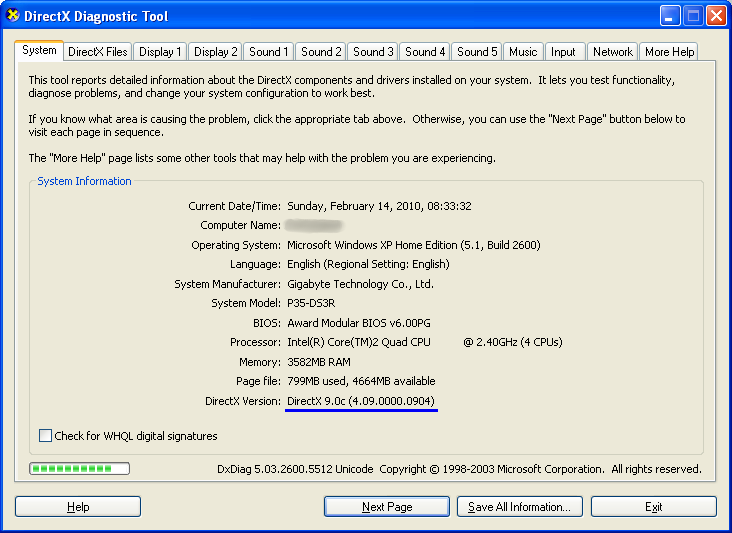
To check DirectX version run "dxdiag" from Start/Run.

Read more...

Sunday, January 24, 2010

Scheduled Chimes in Windows XP and Vista

I like quarter of an hour chimes - they give a good reference of the course of time. There are some computer programs available which do the task, but it's a pity I was not able to find a nice one for Windows XP which would be free of serious disadvantages.

Some of the programs I tried made latent attempts to connect to unknown internet IP through FTP port for unknown purpose - thanks to Comodo firewall, it caught them all. Others took abnormally big memory after a couple hours of running (memory leak?). Nevertheless the task is very simple to solve it by means of tools already available in Windows: scheduling and playing sound.

One of the easiest way to play a WAV sound file from command line is to use "Sound Recorder":

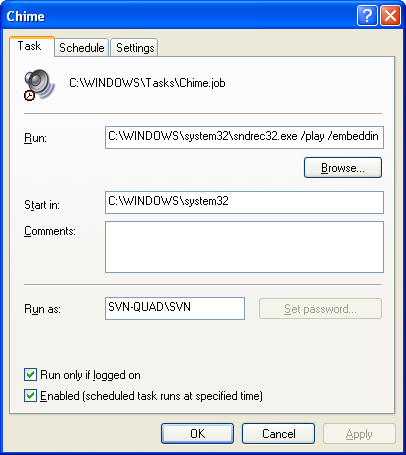
C:\WINDOWS\system32\sndrec32.exe /play /embedding /close "D:\Misc\Chimes\chime.wav"

The option "/embedding" keeps the program running in background, the other keys make it play the chime.wav file and then close.

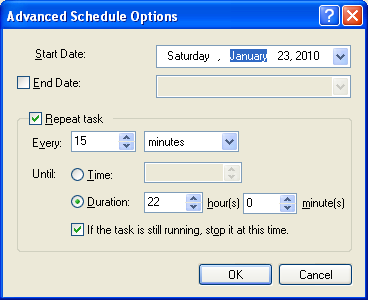
Now the task should be scheduled: go to menu Start/Control Panel then open Scheduled Tasks/Add Scheduled Task and set it, for example, like this:


That's it for Windows XP - choose a ding-dong sound pleasant to your ear and set up the scheduled task to play it. More complicated variants when, for instance, it plays a different sound for a different quarter can be done easily too.

In Vista sndrec32.exe was replaced with SoundRecoder.exe which does not play WAV files, so the way I made it working was:
  1. to copy sndrec32.exe from an XP machine to the box with Vista;

  2. run it for the first time as Administrator to let it get registered;

  3. start Task Scheduler from Start/All Programs/Accessories/System Tools/ and setup the scheduled task similarly to the procedure in XP.
Read more...

Sunday, January 17, 2010

Formatted Code - Internet Explorer's Copy Issue

Not a new thing but just for the record: copying formatted text from a web-page in Internet Explorer to plane editors as Notepad or Notepad++ leads to a problem - all line breaks and/or indentations are lost in spite of preserving them with <pre> </pre> tags.

A way around is to paste it into WordPad first and then copy from WordPad to any other editor you want. There is no such a trouble when FireFox is used either in Windows or Linux.
Read more...

Saturday, December 12, 2009

Palm m515 Sync to MS Outlook 2007 - Free Solution

The original installation for my m515 included Palm Desktop and Chapura's PocketMirror providing conduits for synchronization between Palm and MS Outlook. Migration to Microsoft Office 2003 brought the sync problem for the fist time and Chapura released the free of charge update PMStdUpdate3171.exe to address the issue. Now after upgrading to MS Office 2007 a similar problem appeared again - Palm to Outlook synchronization got broken.

This time Chapura offered only a "pay for upgrade" option, but luckily Palm itself provided a solution to the issue. To get the sync working again:
  1. Uninstall the old Palm Desktop and Chapura Pocket Mirror;
  2. Download and install Palm Desktop 6.2;
  3. Setup synchronization options and do the sync.

I have it working OK at the office and at home with Outlook 2003 and 2007 both in Windows XP. Also there is a separate conduit update from Palm to support Outlook 2007 if you don't want to re-install whole package, but I did not check whether it works with the old Palm Desktop or does not.
Read more...

Saturday, November 21, 2009

Getch in Python - Read a Character without Enter

Sometimes it is more appropriate to read from keyboard without waiting for Enter to be codessed, for example, when choosing from a menu. The raw_input("Prompt String >") always waits for Enter, so a function similar to getch() in C is needed and there are some solutions for that in Python.
  1. There is getch() equivalent for Windows environment in library msvcrt:

    import msvcrt

    result = msvcrt.getch()

    Funny thing is that the code works fine from command window (cmd.exe), but does not in IDLE: in IDLE it does not wait for a key and gives out '\xff' as the result.

    In Linux the same can be done this way:

    import sys, tty, termios

    fd = sys.stdin.fileno()
    # save original terminal settings
    old_settings = termios.tcgetattr(fd)

    # change terminal settings to raw read
    tty.setraw(sys.stdin.fileno())

    ch = sys.stdin.read(1)

    # restore original terminal settings
    termios.tcsetattr(fd, termios.TCSADRAIN, old_settings)
    print '\ncodessed char is \'' + ch +'\'\n'

    Since the solution is system dependent some people propose a universal approach when program tries one implementation and if it fails - the other one, here is an example from ActiveState Code, Danny Yoo:

    class _Getch:
    """Gets a single character from standard input.
    Does not echo to the screen."""
    def __init__(self):
    try:
    self.impl = _GetchWindows()
    except ImportError:
    self.impl = _GetchUnix()

    def __call__(self): return self.impl()

    class _GetchUnix:
    def __init__(self):
    import tty, sys

    def __call__(self):
    import sys, tty, termios
    fd = sys.stdin.fileno()
    old_settings = termios.tcgetattr(fd)
    try:
    tty.setraw(sys.stdin.fileno())
    ch = sys.stdin.read(1)
    finally:
    termios.tcsetattr(fd, termios.TCSADRAIN, old_settings)
    return ch

    class _GetchWindows:
    def __init__(self):
    import msvcrt

    def __call__(self):
    import msvcrt
    return msvcrt.getch()

    getch = _Getch()

  2. Using TK library the following code works OK:

    import Tkinter as tk

    def keycodess(event):
    if event.keysym == 'Escape':
    root.destroy()
    x = event.char
    if x == "a":
    print "A done"
    elif x == "b":
    print "B done"
    elif x == "c":
    print "C done"
    elif x == "d":
    print "D done"
    else:
    print x

    root = tk.Tk()
    print "a. Menu choice A"
    print "b. Menu choice B"
    print "c. Menu choice C"
    print "d. Menu choice D"
    root.bind_all('', keycodess)
    # hiding the tk window
    root.withdraw()
    root.mainloop()

    It works OK in Windows command window (cmd.exe), but in IDLE and Linux the line root.withdraw() should be commented out - the code works OK while the root window is in focus. This kind of examples you can find here.

  3. Curses library has its own getch implementation. I did not check it, just would like to mention for the record.
If you know any other solutions - I'd love to here from you about them!
Read more...

Saturday, November 7, 2009

Zimbra - Perfect E-Mail Client for Perfect People

It is common to use a separate e-mail account for each separate activity: work, home, hobby, web subscriptions, etc.. So happened that some of accounts I have at Yahoo and others at Google.  Neither Yahoo nor Google allows simultaneous access to multiple accounts. So I've been thinking for a long time how convenient it would be to have alive connections to all my web e-mail accounts from one place at the same time. Another problem with Yahoo - no support for IMAP (they offer POP3 for $ Mail Plus, but I don't even want POP3). Now solution for both the issues is available - it is Zimbra Desktop.

An attempt to install zdesktop_1_0_3_build_1691_win32.exe failed with a strange error, so I installed previous zdesktop_1_0_build_1537_win32.exe then allowed it upgrading to version 1.0 build 1593 - flawless.

I registered all my Yahoo and Google accounts in Zimbra Desktop and tested them - result is remarkable:
  • All accounts are in simultaneous access as expected.
  • Working from Zimbra Desktop is the same as if it would be from the web-account - all changes applied in the Desktop are properly reflected on the web-account and vice-versa.
  • Somehow Zimbra has true IMAP access to Yahoo free accounts - it's probably become possible because Zimbra is actually Yahoo Zimbra.
  • Zimbra enables IMAP access to Google e-mail accounts and it works fine too.
  • Zimbra provides an access not only to inbox but to all existing folders in the account.
  •  It can work with many other types of accounts as Hotmail, AOL, POP3, IMAP, etc.:

  • Zimbra has many other features which I don't need yet but I'm considering them interesting for the future.
  • Available for Linux and Windows.
I tested it on Yahoo and Google accounts - Zimbra gives a transparent control over e-mails as if you would be really logged in the web-account. Amazing!


The only inconvenience I faced with Zimbra Desktop is that it relies on computer account security, but the issue is related not to the program itself but to a user perfection and I am apparently not such one. So if you have not established a separate password protected account for every member of your crew, your parrot and your wooden leg, then Zimbra Desktop can be started by someone with access to the computer and all your e-mail accounts will be exposed whether you like it or not. I personally didn't want to change the sin way what got settled on my desktop PC - that's why I simply installed Zimbra on a virtual machine with all passwords and I run it only for myself.

Potentially, in order to satisfy imperfect people as myself, the issue could be easily fixed by adding a "user logon to Zimbra" with loading a corresponding account profile... but probably that would be too much to expect from Zimbra developers: Zimbra Desktop is already a great useful program.

It should be said that Desktop is just one application among many what Zimbra offers. The main product is Zimbra Collaboration Suit. It comes with different flavors and prices from the free Open Source Edition to the Professional Edition - check out their web-site for details.
Read more...

Thursday, October 29, 2009

List of PCI and USB Devices - Linux and Windows

Sometimes it's necessary to check devices installed on a PC. In Linux it is quite simple - command

$ lspci -h

gives out available options for listing PCI devices.
For example,

$ lspci -nn

shows up both textual and numeric ID's.

There is a similar command for USB devices:

$ lsusb -h

For the same purposes in Windows there is a nice program devcon.exe - it can be downloaded from http://support.microsoft.com/kb/311272.
For instance, command

> devcon findall PCI*

lists all PCI devices. The following command shows up all PCI devices with assigned system resources:

> devcon resources PCI*

Read more...

Saturday, October 10, 2009

Mixed Windows & Linux Network - Free Remote Desktop

Having some computers with Windows and others with Linux makes remote desktop access from one computer to another slightly more complicated. Here is what I found as a working solution.

  • From Windows to Windows connection - UltraVNC. It has viewer and server, 32 and 64-bit XP and Vista compatible. It works fine with hardware and virtual Windows machines and any edition (Microsoft remote desktop is not available for the cheapest versions as Home, Basic, Premium).

  • From Windows and Linux to Linux - NoMachine NX. They offer Windows and Linux viewers for free, Linux server is free as well. I used NX viewers and servers on hardware and virtual Linux boxes with KDE, on Debian and Ubuntu all work very good.

  • From Linux to Windows - I found Remote Desktop Connection (krdc) already installed on Mepis 8.0 and used UltraVNC server on Windows side. In krdc connection request: vnc:/IPAddress:0

VNC and SSH protocols should be enabled in firewalls on both server and client/viewer sides.
Read more...

Friday, October 9, 2009

Comodo's cmdagent.exe Seized CPU - Bad Virus Database

This week Comodo stepped on a rake. They released a new virus database and cmdagent.exe service went completely crazy: it took about 100% of CPU time and made computers totally useless.

The cure was to start computer is Safe mode (press F8 during boot) and copy the installation default virus database bases.cav from
C:\Program Files\COMODO\COMODO Internet Security\repair
to the working directory
C:\Program Files\COMODO\COMODO Internet Security\scanners
then update the database again to the corrected new version.

Comodo had the problem rectified pretty quickly but still those who got into the trouble had to apply the fix manually. Hopefully it was the last time when Comodo accidentally released not completely tested update and they will be more careful in the future.
Read more...

Thursday, September 17, 2009

Firewalls for Windows - Free for Personal Use

I've decided to write in the post about some of my experience with different firewalls for Windows. I needed a firewall with such features as easy and detailed management, possibility to work via remote access with hardware and virtual computers, for both 32- and 64-bit Windows versions, XP and Vista. Here are what I used and my impressions from that.
  1. Windows firewall comes along with both 32- and 64-bit OS versions. XP firewall does not control outbound traffic what is not acceptable for me, Vista firewall does, but its setup is a nightmare - it does not show what process is really sending something out. Since it is not clear what is going on and corresponding rules should be defined manually it appears very difficult to set up the firewall. From what I read, Microsoft put a proper control over the firewall into Windows Live OneCare and there was a hope that soon it would become free of charge, but it is still not - the price is $49.95.

  2. ZoneAlarm is very easy firewall to deal with. I've been using it for a couple of years. It shows outgoing processes and asks whether you want it to be blocked or pass through, once or forever - this is the very right way for firewall to help in setting the rules. At present ZoneAlarm seems to have a free for personal use firewall with both 32- and 64-bit versions for Vista, XP still gets it as 32-bit only: http://www.zonealarm.com/security/en-us/system-requirements-zonealarm-products.htm. ZoneAlarm disadvantages are:

    1. not very detailed rule settings;

    2. a firewall alert window is not clickable via VNC remote session, what made the remote session very conditional – if firewall shows an alert it is necessary to go to that specific computer and click the firewall pop-up window button.

    Because of those drawbacks I decided to move to another firewall about a year ago.

  3. Comodo - I started using Comodo about a year ago when it was a firewall only (now it comes along with antivirus and defense). I needed more control over the function than I could get from free Zone Alarm and Comodo offered that. Later, when I got a media-PC with Vista x64, Comodo again was one of not many free for personal use supporting 64-bit Windows and the most advanced and rich one among them in features and depth of control. To be honest, at that time Comodo had two main disadvantages from my point of view:

    1. It was too annoying - it required confirmation for every step of a process carrying out. It was educational to see what is going on under the hood, but so many alerts were pretty disturbing (although after setting a permanent rule, of course, it calmed down);

    2. Somehow it blocked remote NX session from one network computer to a virtual Linux computer running on another x64 Vista network machine (pretty specific case I think, but I needed that). Everything like Internet and local network access from the virtual computer was working fine, but not the NX session - and it was the Comodo firewall on the Vista host which blocked the connection.

    That was in the past, the current versions are free from the both of the drawbacks and work very stable on my different Windows computers: 32- or 64-bit OS, different hardware brands; there is no problem with NX or any other type of remote access to hardware or virtual machines I use.

  4. Sphinx - I used it at the time when Comodo had the problems I described above and there were very limited number of available 64-bit firewalls free for personal use. Sphinx was one of them. As its description suggests Sphinx is not a complete firewall, it is a control over the existing Windows firewall and Sphinx compensates the lack of management in it: Sphinx generates pop-up alerts for traffic and sets the firewall rules according to a user choice. It's a pity the rule settings in the free version are very poor: just "Allow" or "Block", all rules are in the same general zone - more detailed control is available only with the commercial version of Sphinx. Nevertheless it did the job.
Nowadays much more firewalls are available for free for personal use: Ashampoo, PCTools, Outpost, etc. - just search. The choice of x64 versions has become better too. Some of them, Comodo, for example, come in a bundle with other protection tools as antivirus and malware defense. At present I put Comodo in charge of security on all of my Windows computers and it seems it's doing the job very well: I have not noticed any system or application slowdown, antivirus is a little bit too alert in "Heuristic" mode (jumps up on some of safe programs), but it's a rare case and it can be easily pacified. Comodo also offers commercial versions of firewalls and many other network security products for different cases - if interested you can check it out following the sponsor link:

Comodo Internet Security Pro
Read more...

Saturday, July 25, 2009

Windows XP and Vista - Account Pictures

The default collection of pictures for user accounts can be found in the following folders:

in Vista - C:\ProgramData\Microsoft\User Account Pictures\Default Pictures\

in XP - C:\Documents and Settings\All Users\Application Data\Microsoft\User Account Pictures\Default Pictures\

The pictures are BMP, in Vista they are of 128x128 pixels and in XP - 48x48 pixels.
Read more...

Windows XP and Vista - Map Network Drive with Batch file

For security reason it is a good practice to share specific folders on network with authorized access. Unfortunately Windows sharing has an unpleasant feature that if there is an established connection from one user to a network computer (sharing server), connection for another user from the same machine to the same server will be rejected. For instance if there are two shared folders: one for User1 and another for User2,- and User1 has already connected, in order to switch to User2 it is necessary to close the User1 network mapping first then reconnect as User2. Not a big deal to do it once in a while, just go to Windows Explorer's Tools\"Disconnect Network Drive" then "Map Network Drive", however switching back and forth becomes annoying very quickly. A possible solution is to use a batch file to automate the switching.

The command to handle that is "net use..." with different options. A description of the command can be found on Microsoft website: Net use .

The two batch files can do the job:
  1. User1.bat has the following lines:

    net use * /delete /yes
    net use x: \\NetServerName\SharedFolder *
    /user:NetServerName\User1

  2. User2.bat :

    net use * /delete /yes
    net use y: \\NetServerName\SharedFolder *
    /user:NetServerName\User2
The first command "net use * /delete /yes" in the both files deletes all existing connections. The key "/yes" is not documented in the official Microsoft description, but it works as a default response to the command prompt question [Y/N].

The second command sets up new mapping to the specified shared folder from the specified user. An asterisk (*) at the password key position makes the command ask for the password.

I put shortcuts to the batch files on the desktop and switching between these shared folders became trivial.
Read more...

Tuesday, July 21, 2009

Windows Filesharing Error - Not Enough Server Storage

Recently I bumped into a problem with file-sharing - an attempt to copy files from an XP machine to a Vista computer ended up with the error "Not enough server storage". Rebooting all the computers did not help to resolve the issue. As Microsoft suggests the problem is related to a small value for IRPStackSize parameter on the server side computer.

On the server computer
start Regedit.exe as Administrator, go to "HKEY_LOCAL_MACHINE\SYSTEM\CurrentControlSet\Services\LanmanServer\Parameter". From there change IRPStackSize to a value in range from 16 to 50. I made it 25 decimal (or 19 in hex). If the parameter IRPStackSize does not exit, create it as DWORD Value. Reboot the computer and check if it helps. If still not, you can try a bigger value, reboot and check again. I changed the value on all my network computers to 25 - since then the problem has not surfaced yet.
Read more...

Monday, July 20, 2009

Control Startup Applications in Windows XP and Vista

To control which applications should be run at startup a general working both for XP and Vista way is using MSCONFIG.EXE: switch to the Startup tab and just unselect the items you do not want to be starting automatically.

In Vista there is another way via Windows Defender: start it from Control Panel, in Window Defender click Tools, then Software Explorer, choose Category "Startup Programs", you can Disable programs in the list to prevent them from starting.

The easiest way to make a program starting automatically is to add its shortcut to the "All Programs"\Startup folder.
Read more...

Sunday, June 28, 2009

Change owner and delete a system file in Windows Vista

Sometimes it is necessary to delete a file but impossible even with Administrator privileges because the file is owned by system itself. It is still can be done by 1) changing owner of the file and 2) granting full control over the file to the new owner.

For example, in order to delete C:\pagefile.sys (Pagefile should be already disabled in Control Panel\System\Advanced System Settings\Advanced\Performance Setting\Advanced\Change\No Paging File) start CMD elevated (Shft+Ctrl+Enter) then:

>takeown /f c:\pagefile.sys
>cacls c:\pagefile.sys /G username:F

Replace [username] with a real name of the user which took ownership of the file. After that the file should become deletable.
Read more...