Showing posts with label Python. Show all posts

Sunday, May 30, 2010

Eclipse IDE - Add Python

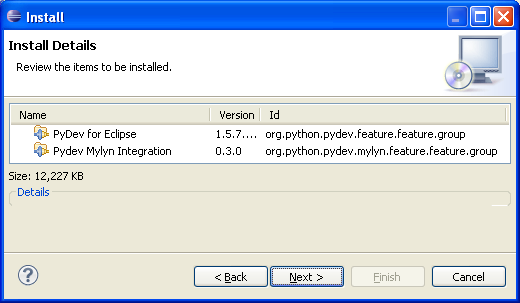
PyDev is a very good and popular Python IDE plug-in for Eclipse SDE. Adding it to Eclipse is straight forward: just follow "Quick Install" in the download page or detailed instructions from Installation section of PyDev manual.

I chose the installation via Update Manager:


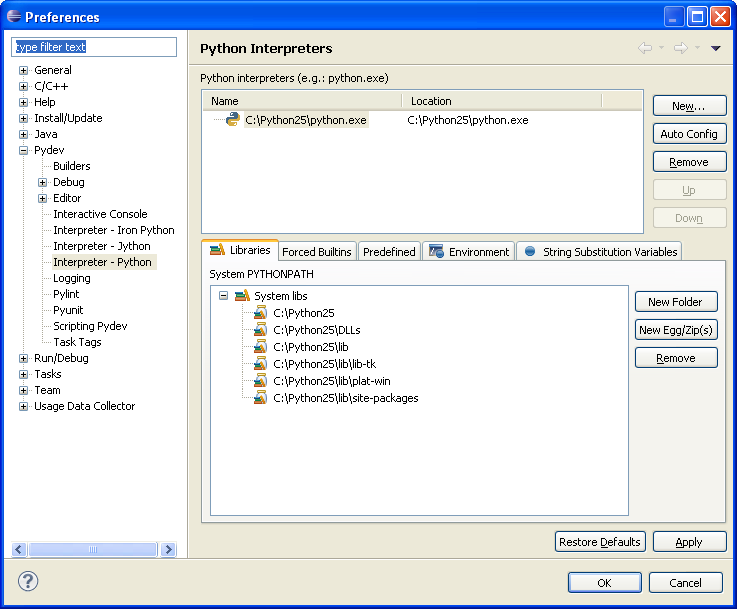
Start Eclipse and set up Python Interpreters in menu Windows/Preferences:


by clicking "Auto Config" or "New..." button.

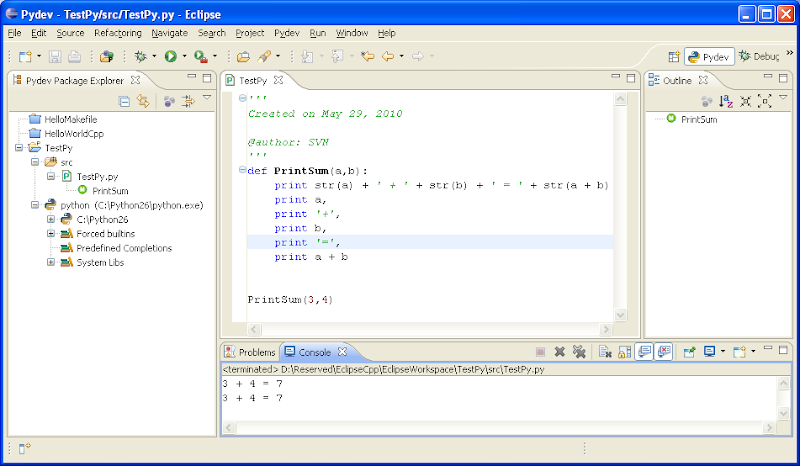
For testing create a new Pydev project from menu File/New/Project:


Write any simple code and run:


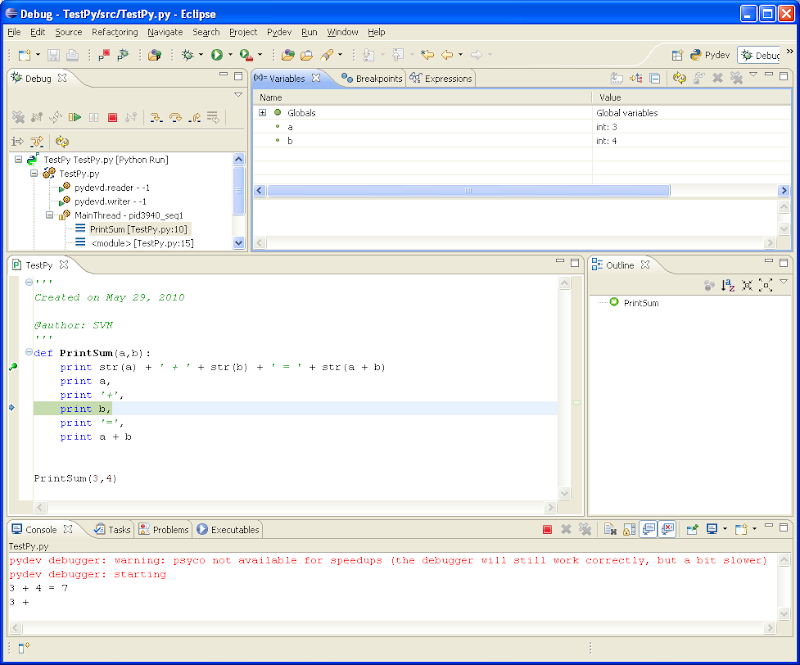
Python extension module Psyco can be installed in order to speed up debugging. It's a pity I could not make it work with Python 2.6 - it shows the warning that "psyco is not available...":


It works fine with Python 2.5:


Read more...

Saturday, March 6, 2010

COM Port Connection Automation - Python and CSharp

Many control and measurement devices support RS232 serial interface for communication what easily allows automation. It is pretty convenient when software can find out on its own what device is connected to what COM port. It is the case especially when the port is not a physical one with a fixed number, but a virtual representation in system and its number may change from one connection to another. Some of Fluke and Agilent multimeters, Arroyo temperature controllers and many other devices using similar to USB FTDI chips connection approach can be examples of that.

Finding a COM port device automatically can be done in the two following steps:
  1. Find all available COM ports in system. In Python it can be a function like this:
    import serial

    def COMportScan():
    """scans for available COM ports."""
    availableCOMports = []
    for i in range(256):
    try:
    COMport = serial.Serial(i)
    availableCOMports.append(COMport.portstr)
    COMport.close()
    except serial.SerialException:
    pass
    return availableCOMports

    The same thing in C Sharp:
    using System.IO.Ports;

    string[] availableCOMports;
    availableCOMports = SerialPort.GetPortNames();

  2. Among the available ports find the port which is connected to a particular device. Any device interface command with predictable response can be used for that, for example, for Fluke 189 DMM it can be Identification "ID" command:

    With Python a solution can look like this:
    def ReadDataString(self):
    strData = ''
    cycles = 0
    char = self.comport.read()
    while (char != chr(13) and cycles < 100):
    strData = strData + char
    char = self.comport.read()
    cycles += 1
    return strData

    def readFlukeID(self):
    strFlukeID = ''

    self.comport.write("ID" + chr(13))
    char = self.comport.read() # Read out '0'
    char = self.comport.read() # Read out chr(13)
    self.m_strFlukeID = self.ReadDataString()
    return self.m_strFlukeID

    Similarly with C# :
    public string ReadDataString()
    {
    string strData = "";
    int cycles = 0;
    char[] ch = new char[1];

    try
    {
    COMPort.Read(ch, 0, 1);

    while ((ch != '\r') && (cycles < 100))
    {
    strData += ch;
    COMPort.Read(ch, 0, 1);
    cycles += 1;
    }
    }
    catch (TimeoutException) { }

    return strData;
    }

    public string ReadFlukeID()
    {
    string strFlukeID = "";
    COMPort.WriteLine("ID\r");
    COMPort.Read(ch, 0, 1); // Read out '0';
    COMPort.Read(ch, 0, 1); // Read out chr(13);
    strFlukeID = ReadDataString();
    return strFlukeID;
    }
Read more...

Saturday, November 21, 2009

Getch in Python - Read a Character without Enter

Sometimes it is more appropriate to read from keyboard without waiting for Enter to be codessed, for example, when choosing from a menu. The raw_input("Prompt String >") always waits for Enter, so a function similar to getch() in C is needed and there are some solutions for that in Python.
  1. There is getch() equivalent for Windows environment in library msvcrt:

    import msvcrt

    result = msvcrt.getch()

    Funny thing is that the code works fine from command window (cmd.exe), but does not in IDLE: in IDLE it does not wait for a key and gives out '\xff' as the result.

    In Linux the same can be done this way:

    import sys, tty, termios

    fd = sys.stdin.fileno()
    # save original terminal settings
    old_settings = termios.tcgetattr(fd)

    # change terminal settings to raw read
    tty.setraw(sys.stdin.fileno())

    ch = sys.stdin.read(1)

    # restore original terminal settings
    termios.tcsetattr(fd, termios.TCSADRAIN, old_settings)
    print '\ncodessed char is \'' + ch +'\'\n'

    Since the solution is system dependent some people propose a universal approach when program tries one implementation and if it fails - the other one, here is an example from ActiveState Code, Danny Yoo:

    class _Getch:
    """Gets a single character from standard input.
    Does not echo to the screen."""
    def __init__(self):
    try:
    self.impl = _GetchWindows()
    except ImportError:
    self.impl = _GetchUnix()

    def __call__(self): return self.impl()

    class _GetchUnix:
    def __init__(self):
    import tty, sys

    def __call__(self):
    import sys, tty, termios
    fd = sys.stdin.fileno()
    old_settings = termios.tcgetattr(fd)
    try:
    tty.setraw(sys.stdin.fileno())
    ch = sys.stdin.read(1)
    finally:
    termios.tcsetattr(fd, termios.TCSADRAIN, old_settings)
    return ch

    class _GetchWindows:
    def __init__(self):
    import msvcrt

    def __call__(self):
    import msvcrt
    return msvcrt.getch()

    getch = _Getch()

  2. Using TK library the following code works OK:

    import Tkinter as tk

    def keycodess(event):
    if event.keysym == 'Escape':
    root.destroy()
    x = event.char
    if x == "a":
    print "A done"
    elif x == "b":
    print "B done"
    elif x == "c":
    print "C done"
    elif x == "d":
    print "D done"
    else:
    print x

    root = tk.Tk()
    print "a. Menu choice A"
    print "b. Menu choice B"
    print "c. Menu choice C"
    print "d. Menu choice D"
    root.bind_all('', keycodess)
    # hiding the tk window
    root.withdraw()
    root.mainloop()

    It works OK in Windows command window (cmd.exe), but in IDLE and Linux the line root.withdraw() should be commented out - the code works OK while the root window is in focus. This kind of examples you can find here.

  3. Curses library has its own getch implementation. I did not check it, just would like to mention for the record.
If you know any other solutions - I'd love to here from you about them!
Read more...

Sunday, November 15, 2009

Getting Out of The Python's Loops

Python is a great language - I used it many times for measurement automation. The only thing I stumbled on from time to time was a simple control over long time or infinite loops. When the loop is running it should check for a key or a button been pressed without stopping and waiting for input. Such stopping and waiting happens, for example, when a function like getch() is used.

The case in general looks like this:
while 1:
print 1,
and the problem is how to get out of the loop gracefully without killing the program.

I'm aware of the following variants to deal with the situation:
  1. Ctrl-C/Crtl-D keyboard program termination. It works but kills whole program. It is possible to avoid that by exception processing of the error:
    try:
    while 1:
    print 1,
    # on ctrl-d or ctrl-c
    except (EOFError, KeyboardInterrupt):
    print '\n exception handled'
    print 'Clean Exit on Ctrl-C/D'

  2. Tkinter - it allows to stop looping on event as "button pressed":
    import time
    from Tkinter import *

    class App:

    Var = 1

    def __init__(self, master):
    frame = Frame(master)
    frame.pack()

    self.button = Button(frame, text="QUIT",
    command=frame.quit)
    self.button.pack(side=LEFT)

    self.stoploop = Button(frame, text="Stop",
    command=self.stopLoop)
    self.stoploop.pack(side=LEFT)

    while self.Var == 1:
    time.sleep(1)
    print self.Var,

    print "\nClean exit from the loop"

    def stopLoop(self):
    self.Var = 0
    print "Var = %d" % self.Var

    root = Tk()
    app = App(root)
    root.mainloop()

  3. Loop in a separate thread (similar to Tkinter variant) - I came up with this idea before finding other better solutions: if the loop is running in a separate thread then user still has access to the main program from keyboard and hence can control the loop too:
    import threading, time

    class LoopThread (threading.Thread):

    Value = 0
    Counts = 0

    def run(self):
    print 'Loop is started'
    while self.Value != 10:
    time.sleep(1)
    self.Counts = self.Counts + 1
    print 'Loop was ended, Counts %d' % self.Counts

    def getVal(self):
    return self.Value

    def setVal(self, Val):
    self.Value = Val

    # Create the object
    MyLoop = LoopThread()

    # Start the thread
    MyLoop.start()

    # Send the loop termination value from
    # the main program whenever you need
    time.sleep(11)
    MyLoop.setVal(10)
    A disadvantage of this approach is that the loop thread can not use the terminal window since the main program needs it for input from a user. If it is about logging information in the loop - then the info should be saved into a file, for example.
If you know any other solutions - please, share your experience.
Read more...