Showing posts with label administration. Show all posts

Sunday, February 14, 2010

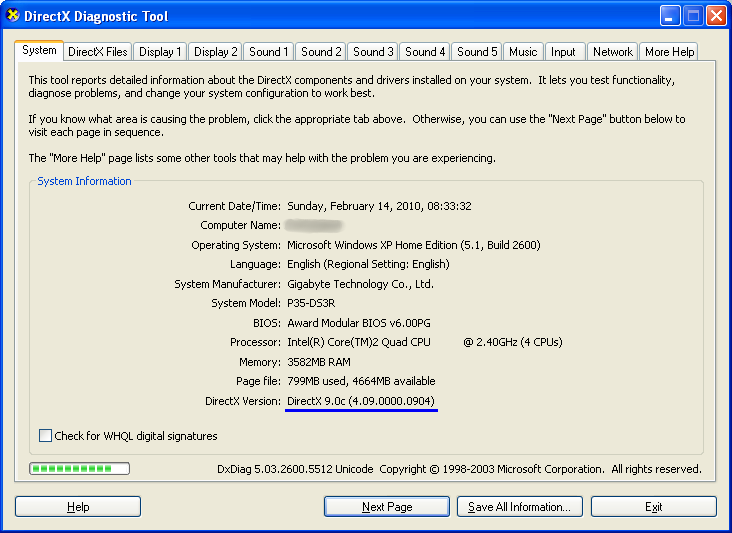
Check DirectX Version

To check DirectX version run "dxdiag" from Start/Run.
Read more...

Thursday, October 29, 2009

List of PCI and USB Devices - Linux and Windows

Sometimes it's necessary to check devices installed on a PC. In Linux it is quite simple - command

$ lspci -h

gives out available options for listing PCI devices.
For example,

$ lspci -nn

shows up both textual and numeric ID's.

There is a similar command for USB devices:

$ lsusb -h

For the same purposes in Windows there is a nice program devcon.exe - it can be downloaded from http://support.microsoft.com/kb/311272.
For instance, command

> devcon findall PCI*

lists all PCI devices. The following command shows up all PCI devices with assigned system resources:

> devcon resources PCI*

Read more...

Saturday, October 10, 2009

Mixed Windows & Linux Network - Free Remote Desktop

Having some computers with Windows and others with Linux makes remote desktop access from one computer to another slightly more complicated. Here is what I found as a working solution.

  • From Windows to Windows connection - UltraVNC. It has viewer and server, 32 and 64-bit XP and Vista compatible. It works fine with hardware and virtual Windows machines and any edition (Microsoft remote desktop is not available for the cheapest versions as Home, Basic, Premium).

  • From Windows and Linux to Linux - NoMachine NX. They offer Windows and Linux viewers for free, Linux server is free as well. I used NX viewers and servers on hardware and virtual Linux boxes with KDE, on Debian and Ubuntu all work very good.

  • From Linux to Windows - I found Remote Desktop Connection (krdc) already installed on Mepis 8.0 and used UltraVNC server on Windows side. In krdc connection request: vnc:/IPAddress:0

VNC and SSH protocols should be enabled in firewalls on both server and client/viewer sides.
Read more...

Friday, October 9, 2009

Comodo's cmdagent.exe Seized CPU - Bad Virus Database

This week Comodo stepped on a rake. They released a new virus database and cmdagent.exe service went completely crazy: it took about 100% of CPU time and made computers totally useless.

The cure was to start computer is Safe mode (press F8 during boot) and copy the installation default virus database bases.cav from
C:\Program Files\COMODO\COMODO Internet Security\repair
to the working directory
C:\Program Files\COMODO\COMODO Internet Security\scanners
then update the database again to the corrected new version.

Comodo had the problem rectified pretty quickly but still those who got into the trouble had to apply the fix manually. Hopefully it was the last time when Comodo accidentally released not completely tested update and they will be more careful in the future.
Read more...

Saturday, October 3, 2009

Finding in Linux (bash shell)

I'd like to put in the list some useful commands for finding things in Linux environment.


  1. apropos keywords - searches through manual descriptions for the keywords. Say, we are interested in commands to find anything:

    $ apropos find search look locate match

    what gives out a list of related commands with short helpful description. On my Mepis 8.0 virtual machine it shows the following lines among others:

    ...
    apropos (1) - search the manual page names and descr...
    look (1) - display lines beginning with a given string
    find (1) - search for files in a directory hierarchy
    grep (1) - print lines matching a pattern
    kfind (1) - KDE find tool
    locate (1) - list files in databases that match a pat...
    rgrep (1) - print lines matching a pattern
    whereis (1) - locate the binary, source, and manual pa...
    which (1) - locate a command
    ...

    apropos will work only if manuals are installed - usually they are, but sometimes for the sake of resource saving manuals can be omitted.

  2. find is a very powerful command for searching files in directories:

    $ find startdir -name filename

    Different options allow to search for files by name, size, type, permission, owner, etc. - check manual and help:

    $ man find
    $ find --help

  3. grep searches for a pattern inside text file:

    grep "pattern" filename

    Example of finding files and then find a pattern inside the files:

    $ find /home/svn -name "test*txt"|xargs grep "first" -i
    The first line of the test file.


    There are some variations of grep as fgrep, rgrep, egrep, bzgrep, etc. - check it with "apropos grep".

  4. kfind is a GUI version of find with grep - it can search for files and pattern inside files.

  5. look prints out strings beginning with a pattern from a file:
    $ look pattern filename

  6. strings prints out all strings from a text or binary file:
    $ strings filename

  7. whereis locates different type of files. For instance:
    $ whereis find
    find: /usr/bin/find /usr/share/man/man1/find.1.gz

  8. locate searches for files in databases (it gives out all files with names containing given keyword):
    $ locate find

  9. which search for executables and shows up the whole path to directories where the files are found:
    $ which find
    /usr/bin/find

Read more...

Thursday, September 17, 2009

Firewalls for Windows - Free for Personal Use

I've decided to write in the post about some of my experience with different firewalls for Windows. I needed a firewall with such features as easy and detailed management, possibility to work via remote access with hardware and virtual computers, for both 32- and 64-bit Windows versions, XP and Vista. Here are what I used and my impressions from that.
  1. Windows firewall comes along with both 32- and 64-bit OS versions. XP firewall does not control outbound traffic what is not acceptable for me, Vista firewall does, but its setup is a nightmare - it does not show what process is really sending something out. Since it is not clear what is going on and corresponding rules should be defined manually it appears very difficult to set up the firewall. From what I read, Microsoft put a proper control over the firewall into Windows Live OneCare and there was a hope that soon it would become free of charge, but it is still not - the price is $49.95.

  2. ZoneAlarm is very easy firewall to deal with. I've been using it for a couple of years. It shows outgoing processes and asks whether you want it to be blocked or pass through, once or forever - this is the very right way for firewall to help in setting the rules. At present ZoneAlarm seems to have a free for personal use firewall with both 32- and 64-bit versions for Vista, XP still gets it as 32-bit only: http://www.zonealarm.com/security/en-us/system-requirements-zonealarm-products.htm. ZoneAlarm disadvantages are:

    1. not very detailed rule settings;

    2. a firewall alert window is not clickable via VNC remote session, what made the remote session very conditional – if firewall shows an alert it is necessary to go to that specific computer and click the firewall pop-up window button.

    Because of those drawbacks I decided to move to another firewall about a year ago.

  3. Comodo - I started using Comodo about a year ago when it was a firewall only (now it comes along with antivirus and defense). I needed more control over the function than I could get from free Zone Alarm and Comodo offered that. Later, when I got a media-PC with Vista x64, Comodo again was one of not many free for personal use supporting 64-bit Windows and the most advanced and rich one among them in features and depth of control. To be honest, at that time Comodo had two main disadvantages from my point of view:

    1. It was too annoying - it required confirmation for every step of a process carrying out. It was educational to see what is going on under the hood, but so many alerts were pretty disturbing (although after setting a permanent rule, of course, it calmed down);

    2. Somehow it blocked remote NX session from one network computer to a virtual Linux computer running on another x64 Vista network machine (pretty specific case I think, but I needed that). Everything like Internet and local network access from the virtual computer was working fine, but not the NX session - and it was the Comodo firewall on the Vista host which blocked the connection.

    That was in the past, the current versions are free from the both of the drawbacks and work very stable on my different Windows computers: 32- or 64-bit OS, different hardware brands; there is no problem with NX or any other type of remote access to hardware or virtual machines I use.

  4. Sphinx - I used it at the time when Comodo had the problems I described above and there were very limited number of available 64-bit firewalls free for personal use. Sphinx was one of them. As its description suggests Sphinx is not a complete firewall, it is a control over the existing Windows firewall and Sphinx compensates the lack of management in it: Sphinx generates pop-up alerts for traffic and sets the firewall rules according to a user choice. It's a pity the rule settings in the free version are very poor: just "Allow" or "Block", all rules are in the same general zone - more detailed control is available only with the commercial version of Sphinx. Nevertheless it did the job.
Nowadays much more firewalls are available for free for personal use: Ashampoo, PCTools, Outpost, etc. - just search. The choice of x64 versions has become better too. Some of them, Comodo, for example, come in a bundle with other protection tools as antivirus and malware defense. At present I put Comodo in charge of security on all of my Windows computers and it seems it's doing the job very well: I have not noticed any system or application slowdown, antivirus is a little bit too alert in "Heuristic" mode (jumps up on some of safe programs), but it's a rare case and it can be easily pacified. Comodo also offers commercial versions of firewalls and many other network security products for different cases - if interested you can check it out following the sponsor link:

Comodo Internet Security Pro
Read more...

Saturday, July 25, 2009

Windows XP and Vista - Account Pictures

The default collection of pictures for user accounts can be found in the following folders:

in Vista - C:\ProgramData\Microsoft\User Account Pictures\Default Pictures\

in XP - C:\Documents and Settings\All Users\Application Data\Microsoft\User Account Pictures\Default Pictures\

The pictures are BMP, in Vista they are of 128x128 pixels and in XP - 48x48 pixels.
Read more...

Windows XP and Vista - Map Network Drive with Batch file

For security reason it is a good practice to share specific folders on network with authorized access. Unfortunately Windows sharing has an unpleasant feature that if there is an established connection from one user to a network computer (sharing server), connection for another user from the same machine to the same server will be rejected. For instance if there are two shared folders: one for User1 and another for User2,- and User1 has already connected, in order to switch to User2 it is necessary to close the User1 network mapping first then reconnect as User2. Not a big deal to do it once in a while, just go to Windows Explorer's Tools\"Disconnect Network Drive" then "Map Network Drive", however switching back and forth becomes annoying very quickly. A possible solution is to use a batch file to automate the switching.

The command to handle that is "net use..." with different options. A description of the command can be found on Microsoft website: Net use .

The two batch files can do the job:
  1. User1.bat has the following lines:

    net use * /delete /yes
    net use x: \\NetServerName\SharedFolder *
    /user:NetServerName\User1

  2. User2.bat :

    net use * /delete /yes
    net use y: \\NetServerName\SharedFolder *
    /user:NetServerName\User2
The first command "net use * /delete /yes" in the both files deletes all existing connections. The key "/yes" is not documented in the official Microsoft description, but it works as a default response to the command prompt question [Y/N].

The second command sets up new mapping to the specified shared folder from the specified user. An asterisk (*) at the password key position makes the command ask for the password.

I put shortcuts to the batch files on the desktop and switching between these shared folders became trivial.
Read more...

Tuesday, July 21, 2009

Windows Filesharing Error - Not Enough Server Storage

Recently I bumped into a problem with file-sharing - an attempt to copy files from an XP machine to a Vista computer ended up with the error "Not enough server storage". Rebooting all the computers did not help to resolve the issue. As Microsoft suggests the problem is related to a small value for IRPStackSize parameter on the server side computer.

On the server computer
start Regedit.exe as Administrator, go to "HKEY_LOCAL_MACHINE\SYSTEM\CurrentControlSet\Services\LanmanServer\Parameter". From there change IRPStackSize to a value in range from 16 to 50. I made it 25 decimal (or 19 in hex). If the parameter IRPStackSize does not exit, create it as DWORD Value. Reboot the computer and check if it helps. If still not, you can try a bigger value, reboot and check again. I changed the value on all my network computers to 25 - since then the problem has not surfaced yet.
Read more...

Monday, July 20, 2009

Control Startup Applications in Windows XP and Vista

To control which applications should be run at startup a general working both for XP and Vista way is using MSCONFIG.EXE: switch to the Startup tab and just unselect the items you do not want to be starting automatically.

In Vista there is another way via Windows Defender: start it from Control Panel, in Window Defender click Tools, then Software Explorer, choose Category "Startup Programs", you can Disable programs in the list to prevent them from starting.

The easiest way to make a program starting automatically is to add its shortcut to the "All Programs"\Startup folder.
Read more...

Sunday, June 28, 2009

Change owner and delete a system file in Windows Vista

Sometimes it is necessary to delete a file but impossible even with Administrator privileges because the file is owned by system itself. It is still can be done by 1) changing owner of the file and 2) granting full control over the file to the new owner.

For example, in order to delete C:\pagefile.sys (Pagefile should be already disabled in Control Panel\System\Advanced System Settings\Advanced\Performance Setting\Advanced\Change\No Paging File) start CMD elevated (Shft+Ctrl+Enter) then:

>takeown /f c:\pagefile.sys
>cacls c:\pagefile.sys /G username:F

Replace [username] with a real name of the user which took ownership of the file. After that the file should become deletable.
Read more...

Tuesday, June 23, 2009

Recovering from Lost Linux Root Password

Root password can be changed without entering the old forgotten one. Just reboot the computer from LiveCD, then in command prompt mount the root partition on /mnt and make it the current root:


$ mount /dev/hda1 /mnt
$ chroot /mnt /bin/sh

Then

$ passwd

and enter a new password you think you will not forget :)
Read more...